
Organize your photos while you clean up
Add the keepers to an album or Favorites as you go. Changes appear in the Photos app right away.
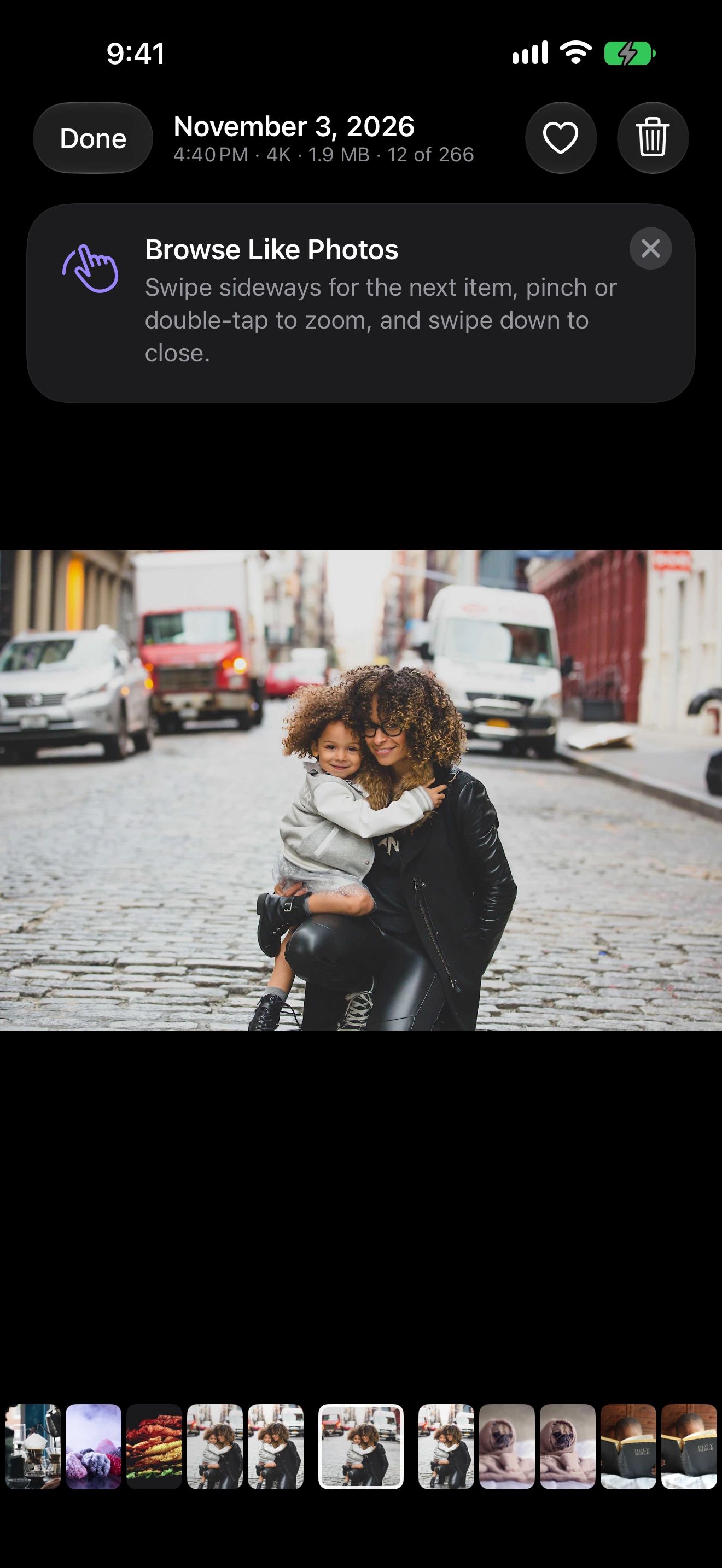
Keep the keepers together
Select photos
Tap the circle on any thumbnail, in any screen.
Add to an album
Pick an existing album or create a new one. Items already there are skipped.
Mark favorites
Tap the heart on a thumbnail or in the viewer.
Why organize and clean in one pass
Going through your library to delete things is also the best moment to save the good ones. Photo Cleaner lets you do both without switching apps.
Select photos anywhere, from the gallery, a similar set, the map or Recently Added, and add them to an album in one step. Favorite the best shot with a tap. Everything lands in the Photos app, exactly where you expect it.
Albums without the busywork
- Add to any of your albums, or create a new one from the same sheet.
- Search albums by name when you have many.
- If some photos are already in the album, Photo Cleaner adds only the others.
Favorites as a safety net
Before a big clean-up, favorite the shots you’d never want to lose. Then filter the gallery to favorites to see them together, and you’ll know exactly what to leave alone while you clear the rest.
On Mac
In the viewer, press period to favorite a photo and Command-Delete to delete it.
Albums and Favorites questions
Do albums I create show up in the Photos app?
Yes. Photo Cleaner uses your Photos library directly, so albums and favorites appear in the Photos app and sync with iCloud Photos if you use it.
What if some photos are already in the album?
Photo Cleaner tells you and adds only the ones that aren't there yet.
Are there keyboard shortcuts on Mac?
Yes. In the viewer, press period to favorite and Command-Delete to delete.
